Docs
Analytics & Reports
Dashboard metrics, trends, alerts, pinning insights from chat, and reporting on your plan
On this page▼
Effitrio shows analytics mainly on the Dashboard, so cash flow and day-to-day signals stay in one place.
Dashboard overview
The Dashboard combines:
- Financial snapshot — revenue and expenses for the current month, comparison to last month, and net income
- Trends — recent months of revenue and expense history, with month-over-month change when there is enough history
- Invoice health — counts such as overdue invoices, unpaid totals, and drafts waiting to go out
- Business footprint — active projects and active clients
- Recent invoices — quick access to what was issued lately
You can also ask the AI assistant about your numbers without leaving the Dashboard.
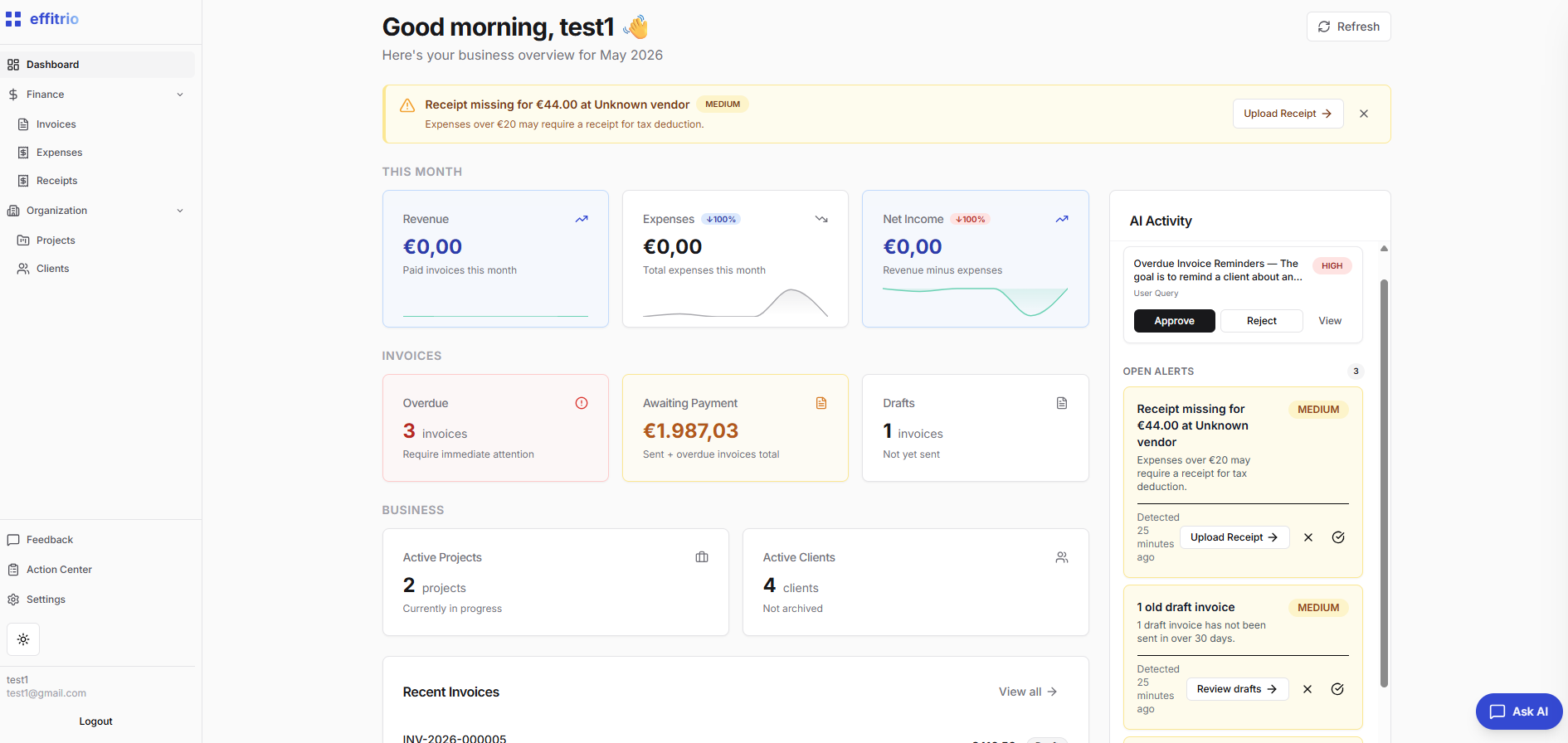
Stats refresh while you keep the dashboard open, and you can refresh manually.
Revenue and expense insights
Use the dashboard cards and charts to answer:
- Are we billing more or less than last month?
- Are expenses growing faster than revenue?
- What does net income look like after expenses this month?
Charts usually cover recent months. For full lists and line items, use Invoices and Expenses.
Proactive alerts
The dashboard includes alerts that do not use AI credits, such as:
- Overdue invoices
- Aging drafts
- Quiet periods with little activity
- Expense spikes
Each alert suggests a next step and links you to the right place in the app.
AI insights and pinned charts
Pinned insights come from AI/chat results you choose to pin to the Dashboard. What you can pin can depend on your plan.
Pin a chart or insight to the Dashboard
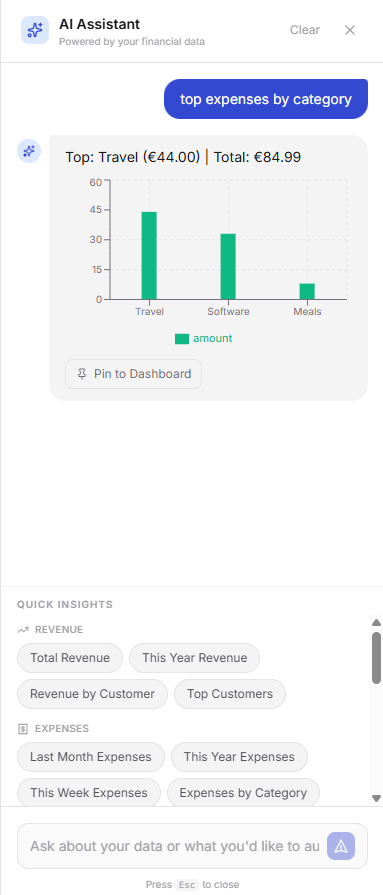
When the assistant returns a chart, table, or summary you want to keep in view, use pin on that result. Pinned items show on the Dashboard next to your usual cards so you can watch them without reopening chat.
Step 1 — start pinning from the AI result
Step 2 — see it on the Dashboard
After you confirm, the pinned insight appears with the rest of your metrics (exact placement may vary by screen size).
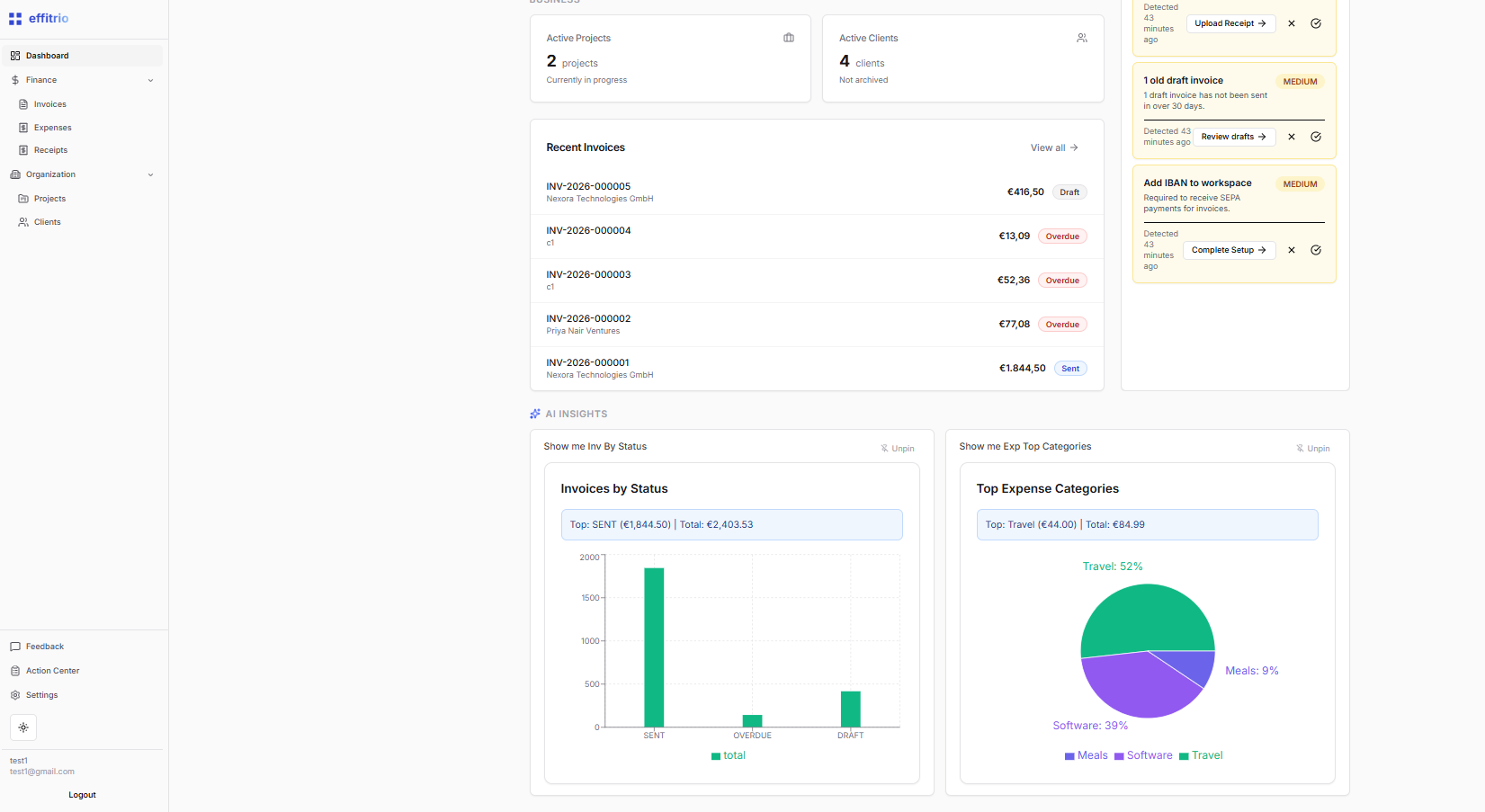
You can manage or remove pinned items from the dashboard when you no longer need that view.
Advanced reports and exports
Depending on your plan, you may get advanced reporting, profitability views, tax-oriented reports, or full data export. When export is available, workspace owners can download it from Settings → Account & Privacy.
If something is not available on your plan, upgrade options appear in Settings → Subscription.
Related
- Getting Started — navigating the app
- Invoices and Expenses — the data behind the metrics
- AI Workflows — goals, approvals, and assistant-driven flows