Docs
MCP (Beta)
Connect Effitrio to ChatGPT, Claude, Cursor, and similar AI tools with a read-only API key
On this page▼
MCP (Beta)
MCP lets you connect AI tools you already use — such as ChatGPT, Claude, or Cursor — so they can look up your Effitrio invoices and related workspace data when you ask.
Today the connection is read-only: your AI can view information, but it cannot change or send anything in Effitrio. Writing and sending from MCP may come later.
MCP uses its own daily call limit (based on your plan). It does not use AI credits.
Where to find it
Open Settings → Integrations → MCP (Beta).
Only the workspace owner can create, view, and revoke keys.
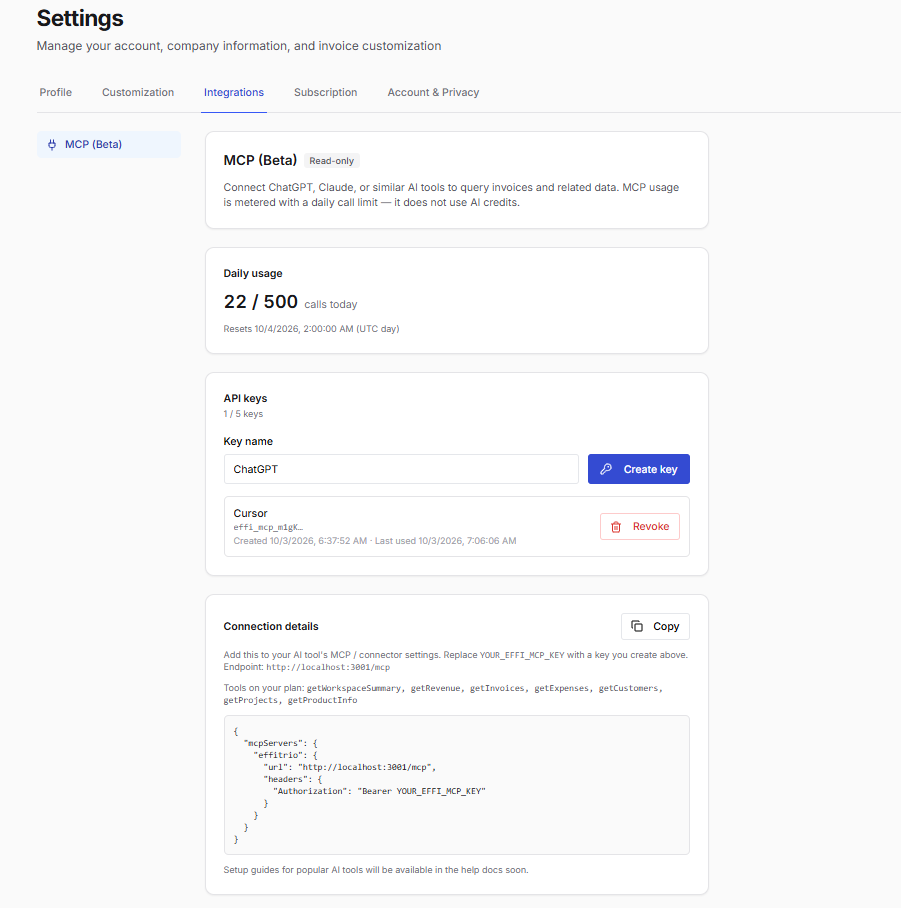
On this page you will see:
- Daily usage — how many MCP calls you have used today, and when the count resets
- API keys — create keys, see the ones you already have, and revoke them
- Connection details — the address to paste into your AI tool, what it can access on your plan, and a ready-to-copy setup snippet
Before you start
- You must be the workspace owner
- Your plan must include MCP (available on Free and Pro)
- Use the connection address shown in Settings — copy it from the page rather than typing one yourself
Create a key
- Open Settings → Integrations → MCP (Beta)
- Under API keys, type a Key name that describes where you will use it (see tips below)
- Click Create key
- In the Copy your API key window, copy the full key right away — Effitrio shows it only once
- Store it somewhere safe, then click Done
Your key starts with effi_mcp_…. After you close the window, the list only shows a short beginning of the key (for example effi_mcp_m1gK…) so you can tell keys apart without revealing the full secret again.
Give each key a clear name
Name the key after the AI tool or place you will use it. That makes it easy to revoke the right one later.
| Example name | Good when you use |
|---|---|
Cursor | Cursor on your computer |
ChatGPT | ChatGPT |
Claude Desktop | Claude Desktop |
Work laptop | Your main work machine |
Tips:
- Use one key per AI tool (or per computer) instead of sharing the same key everywhere
- If a computer is lost or you stop using a tool, revoke only that named key
- You cannot rename a key later — create a new one with the right name and revoke the old one
Create more than one key
Your plan limits how many keys you can have at once (shown as something like 1 / 5 keys).
- Enter a new Key name for the next tool
- Click Create key again
- Copy and save that new key (again, shown only once)
If you have reached the limit, Create key stays disabled until you revoke a key you no longer need (or upgrade, if your plan offers more keys).
Each key in the list shows its name, a short key preview, when it was created, and when it was last used (or Never used).
Revoke a key
Revoking turns that key off right away. Any AI tool still using it will stop being able to connect.
- Open Settings → Integrations → MCP (Beta)
- Find the key in the API keys list (use the name or the short preview)
- Click Revoke
- Confirm in the Revoke this key? window — access ends immediately
- Click Revoke to confirm, or Cancel if you changed your mind
After you revoke:
- Create a new key if you still want that AI tool connected
- Paste the new key into the AI tool’s MCP / connector settings
- You usually keep the same connection address — only the key changes
Connect your AI tool
- In Settings, open Connection details and click Copy
- Paste the snippet into your AI tool’s MCP or connector settings
- Replace
YOUR_EFFI_MCP_KEYwith the key you copied when you created it - Keep the connection address exactly as shown in Settings
It will look similar to this (your connection address may differ):
{
  "mcpServers": {
    "effitrio": {
      "url": "https://YOUR_API_HOST/mcp",
      "headers": {
        "Authorization": "Bearer YOUR_EFFI_MCP_KEY"
      }
    }
  }
}
Each AI tool has its own place to paste this — look for MCP, connectors, or custom tools in that app’s settings.
What your AI can look up
| Plan | What MCP can read |
|---|---|
| Free | Invoices (limited) |
| Pro | A wider set — for example workspace overview, revenue, invoices, expenses, customers, projects, and product help |
Connection details also lists the exact tools available on your plan.
Limits
- Daily calls — shown under Daily usage; the count resets once per day
- Number of keys — shown under API keys (the label used in Settings)
If you hit the daily limit, wait until it resets, or upgrade your plan for a higher limit.
Stay safe
- Only the workspace owner can manage MCP keys
- Treat each key like a password — do not share it in email, chat, or public posts
- Revoke a key as soon as you no longer need it, or if you think it was exposed
- Prefer separate named keys so turning one off does not disconnect every tool at once
If something goes wrong
| What you see | What to try |
|---|---|
| Connection fails or access denied | Check that the key was not revoked, that you pasted it correctly, and that you are the workspace owner |
| Your AI cannot see some data | Free includes fewer tools — Pro unlocks more |
| Daily limit reached | Wait for the daily reset, or upgrade |
| Cannot create another key | You are at the key limit — revoke one you no longer use |
| Cannot connect at all | Copy the connection address again from Settings and make sure your AI tool uses that exact address |
Related
- Settings & Customization — profile, branding, and subscription
- Invoices — invoice basics in Effitrio