Docs
Recurring invoices
Automatically generate invoices on a weekly or monthly schedule
On this page▼
Recurring invoices
Automatically generate invoices on a schedule (weekly, monthly, and similar) so you do not recreate the same invoice every period.
Where to find it
Finance → Invoices → Recurring sub-tab.
Recurring invoices require Pro (or Pro trial). Free workspaces see an upgrade prompt on this tab.
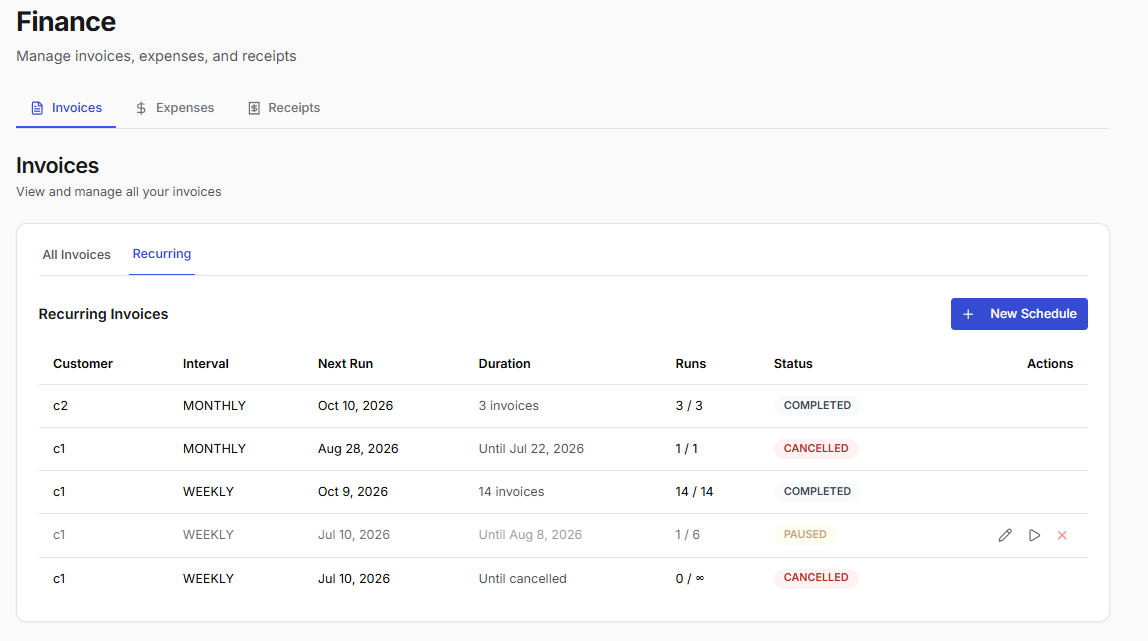
What you can do
- Create a recurring schedule linked to a client
- Set frequency (interval), start date, and duration
- Edit, pause, resume, or cancel a schedule
- View how many invoices have already been generated
Typical workflows
Create a recurring invoice
- Go to Finance → Invoices
- Click the Recurring sub-tab
- Click New Schedule
- Choose a client, interval, start date, duration, currency, and line items
- Save — Effitrio generates invoices on schedule
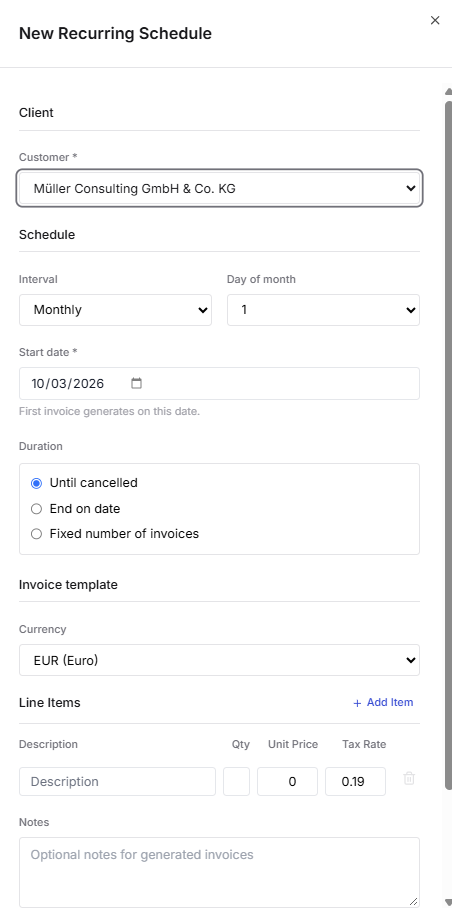
Pause or edit a schedule
- Open Finance → Invoices → Recurring
- Find the schedule in the list
- Use the actions to edit, pause/resume, or cancel
Notes
- Generated invoices appear in the main Invoices list like any other invoice
- Changing a template affects future generated invoices, not ones already created
- Email delivery of generated invoices follows your normal invoice send settings and email limits
FAQ
Is this available on Free?
No — recurring invoices are a Pro feature.
What about recurring expenses?
Recurring expenses are not available in the app yet, even on Pro.