Docs
Settings & Customization
Company profile, branding, templates, subscription, and account privacy
On this page▼
Settings & Customization
Settings is where you manage your company profile, branding, subscription plan, and account privacy options.
Open Settings from the sidebar.
Settings tabs
| Tab | What it covers |
|---|---|
| Profile | Company name, address, email, phone, VAT/tax ID, bank details (IBAN/BIC), country or jurisdiction |
| Customization | Logo, invoice templates, invoice numbering, email templates, Effi Agent |
| Integrations | Connect external AI tools — see MCP |
| Subscription | Current plan, usage, AI credit balance, billing and upgrade options |
| Account & Privacy | Export your data, consent history, account deletion |
Customization sections
Under Settings → Customization:
| Section | What you can change |
|---|---|
| Invoice Templates | Choose an invoice design (availability depends on plan) |
| Invoice Numbering | Custom number format (Pro) |
| Logo | Upload your company logo for invoices |
| Email Templates | Edit subject and body for invoice and reminder emails |
| Effi Agent | How Effi behaves for your workspace (where shown in Settings) |
Typical workflows
Update company details on invoices
- Go to Settings → Profile
- Click Edit
- Update company name, address, contact details, or bank information
- Save — changes apply to new invoices
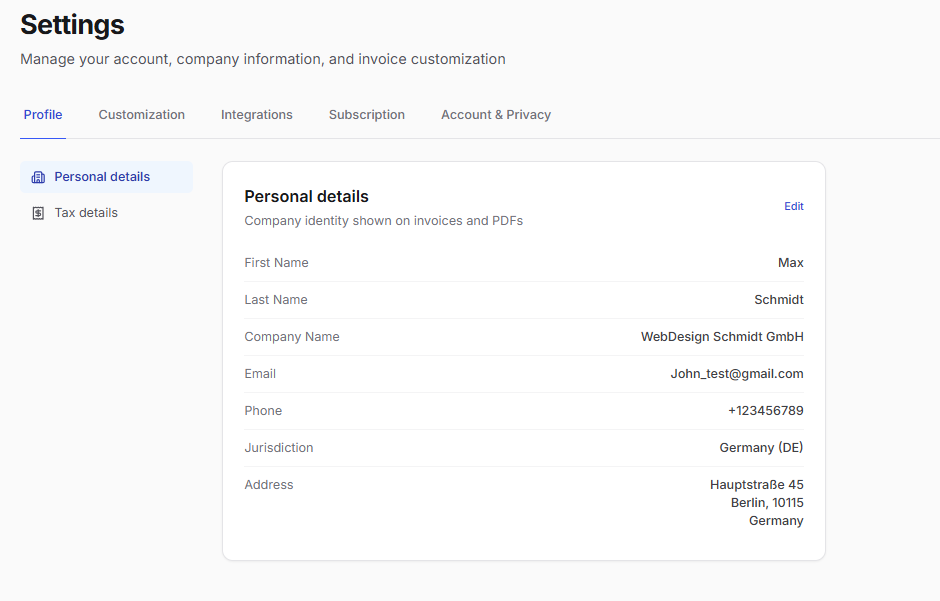
Use the tax and bank fields when you need VAT/tax ID or payment details on invoices:
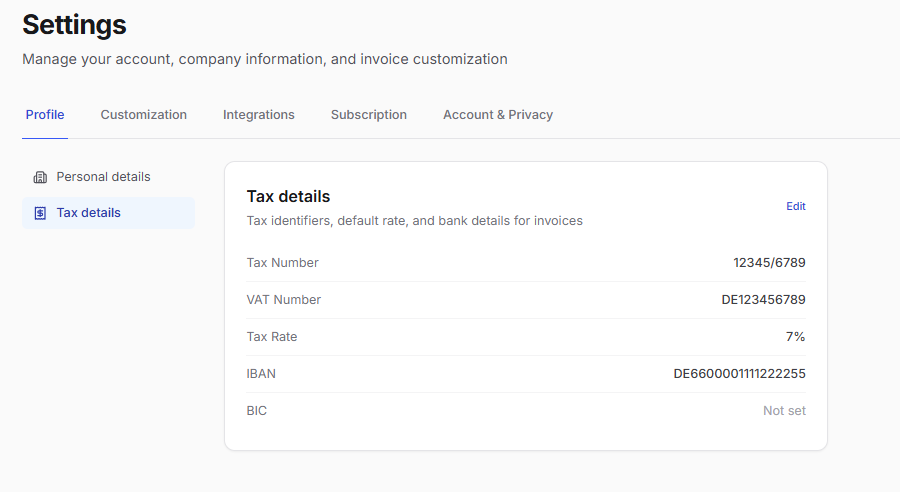
Upload your logo
- Go to Settings → Customization → Logo
- Upload a PNG or JPG image
- Save — your logo appears on invoices
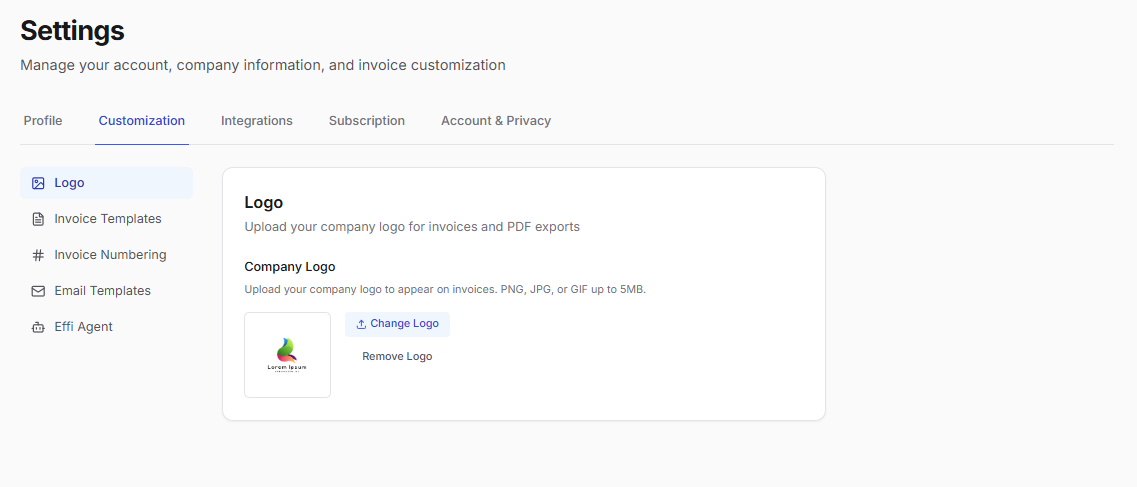
Choose an invoice template
- Go to Settings → Customization → Invoice Templates
- Select a template
- Preview and save
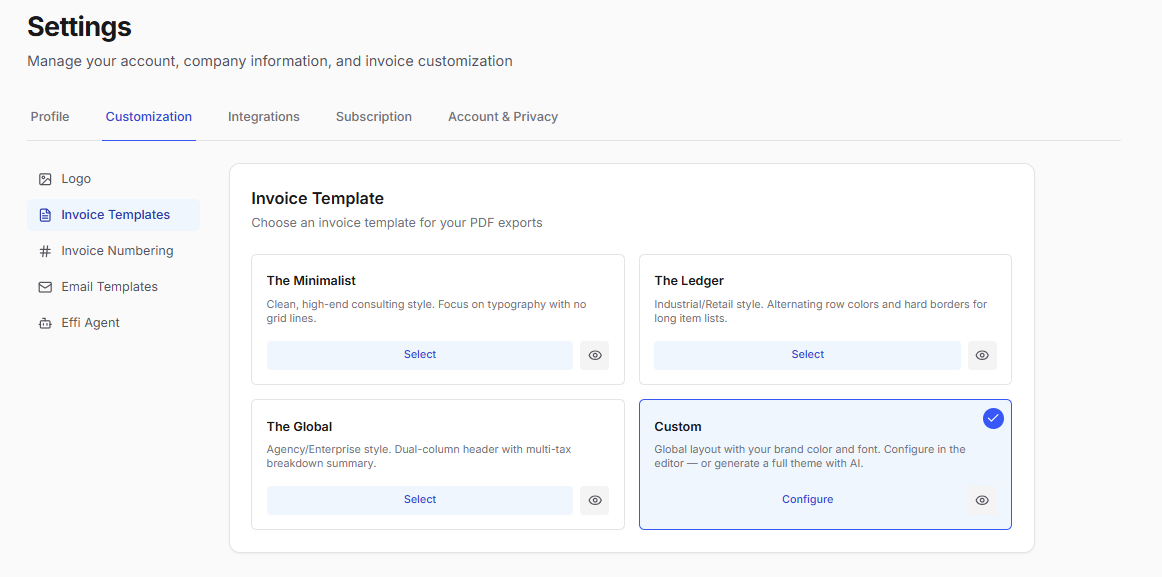
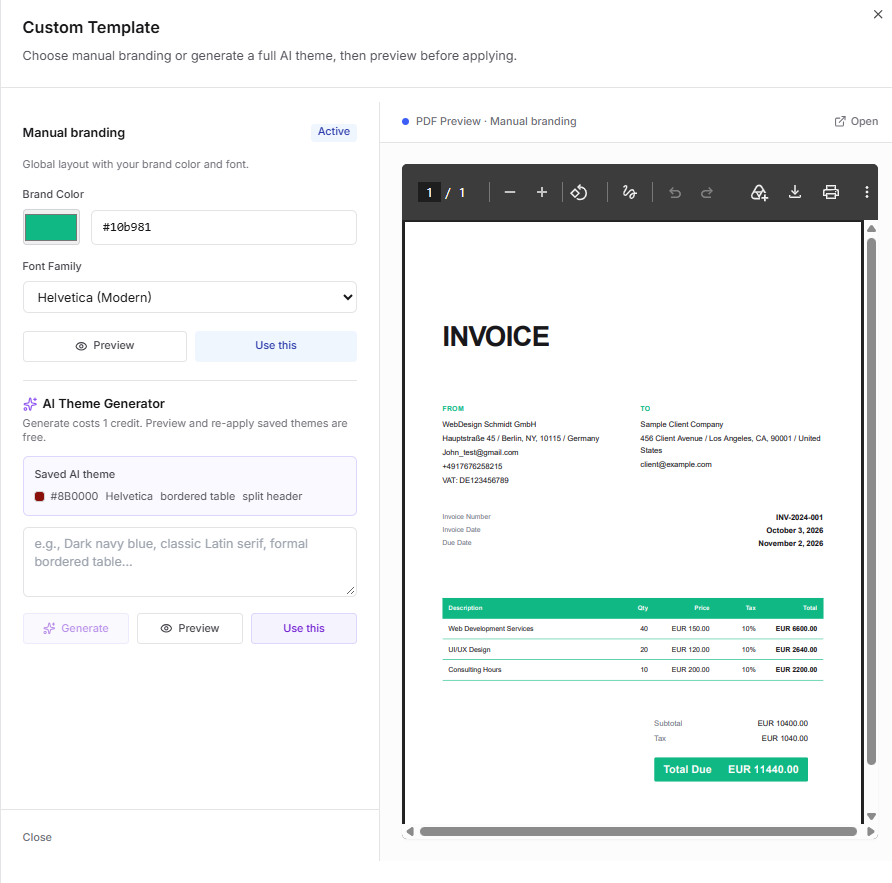
On Pro, you can configure a custom template when that option is available:
Edit email templates
- Go to Settings → Customization → Email
- Select the template type (for example invoice sent or payment reminder)
- Edit the subject and body text
- Save — future emails use the updated template
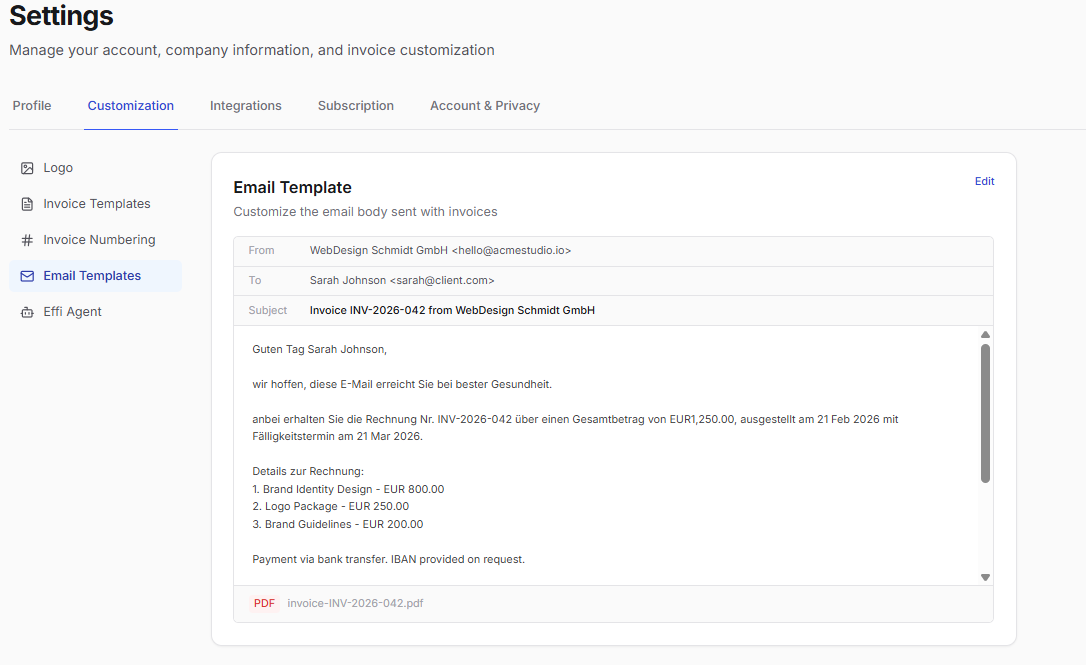
Plain-text email editing:
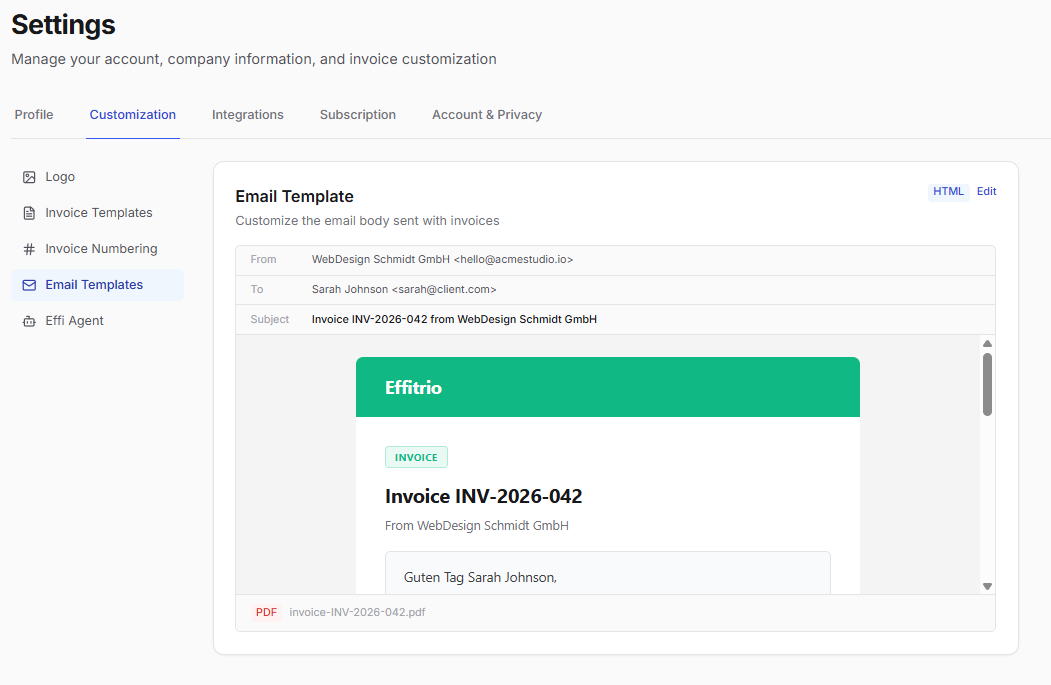
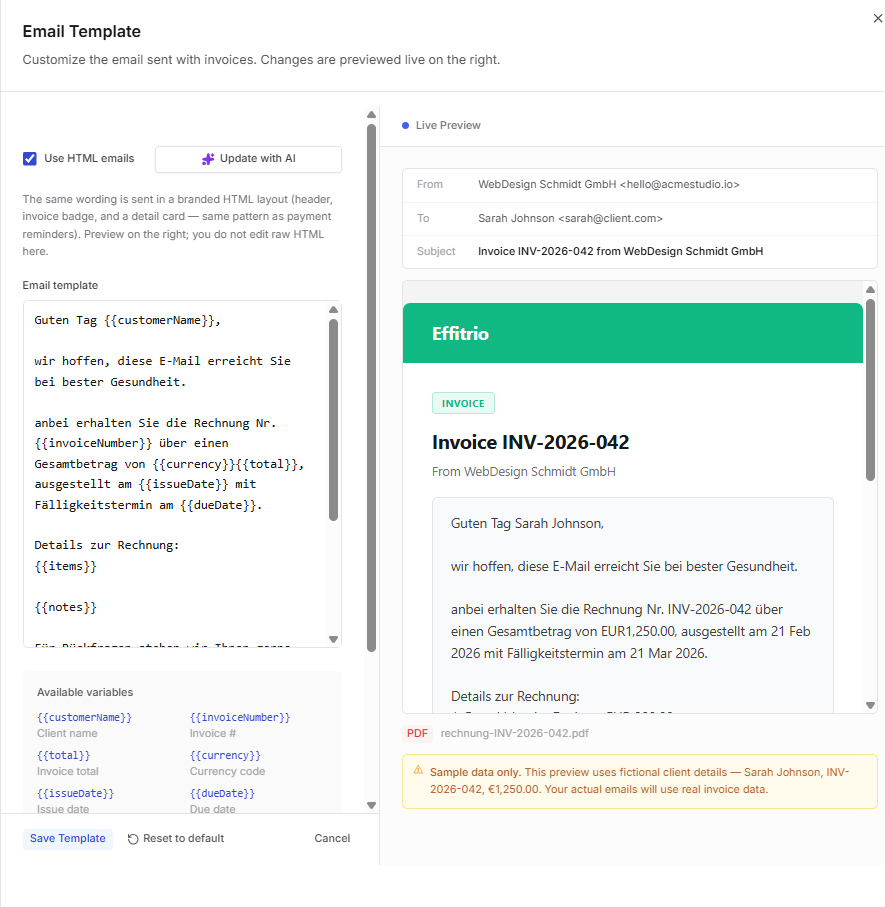
HTML email templates (where your plan allows):
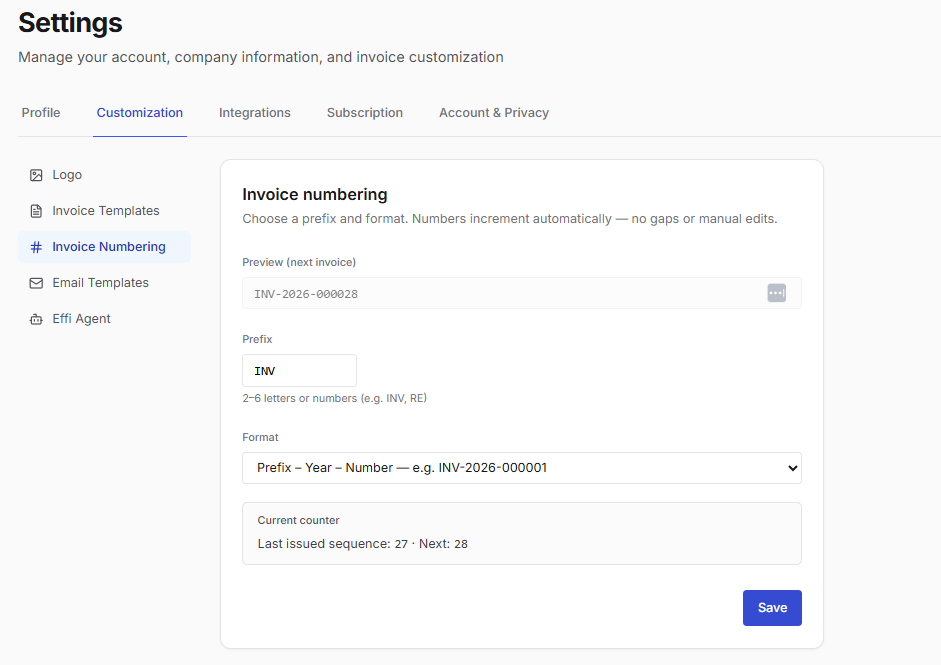
Set custom invoice numbering (Pro)
- Go to Settings → Customization → Invoice Numbering
- Enter your preferred format
- Save — new invoices use this numbering scheme
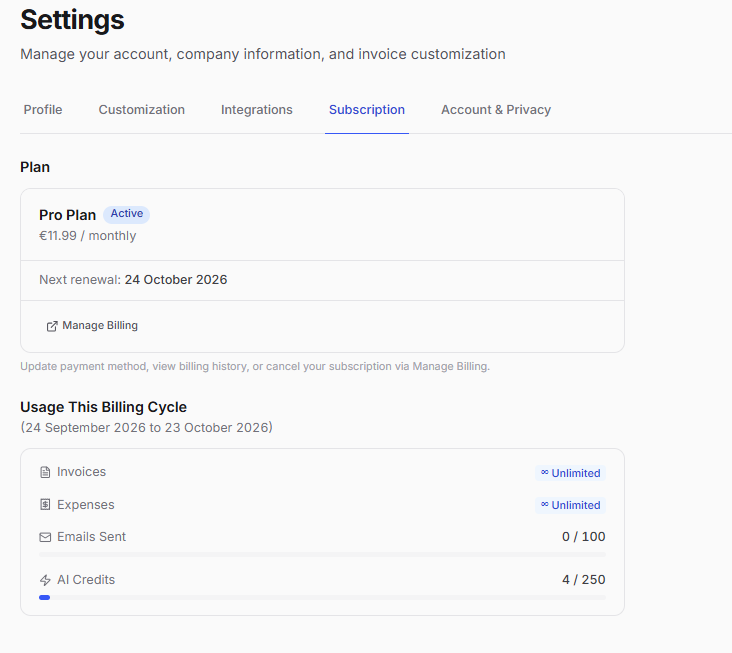
Check plan usage and credits
- Go to Settings → Subscription
- Review usage for invoices, expenses, and emails
- Check AI credit balance and when credits refresh next
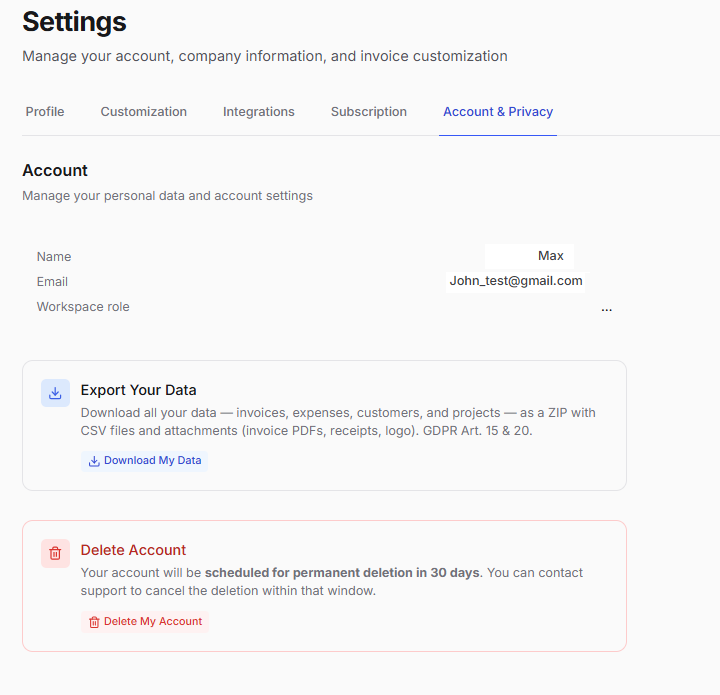
Export your data
- Go to Settings → Account & Privacy
- Use Export Your Data to download a ZIP of your workspace data
Notes
- Profile is for your company details used on invoices, not a personal social profile
- Template and numbering changes apply to new invoices only
- Email template changes apply to future sends only
- Workspace deletion includes a grace period before permanent removal
Related
- MCP — connect ChatGPT, Claude, Cursor, and similar tools
- Invoices — templates and sending
- Getting Started — finding your way around